

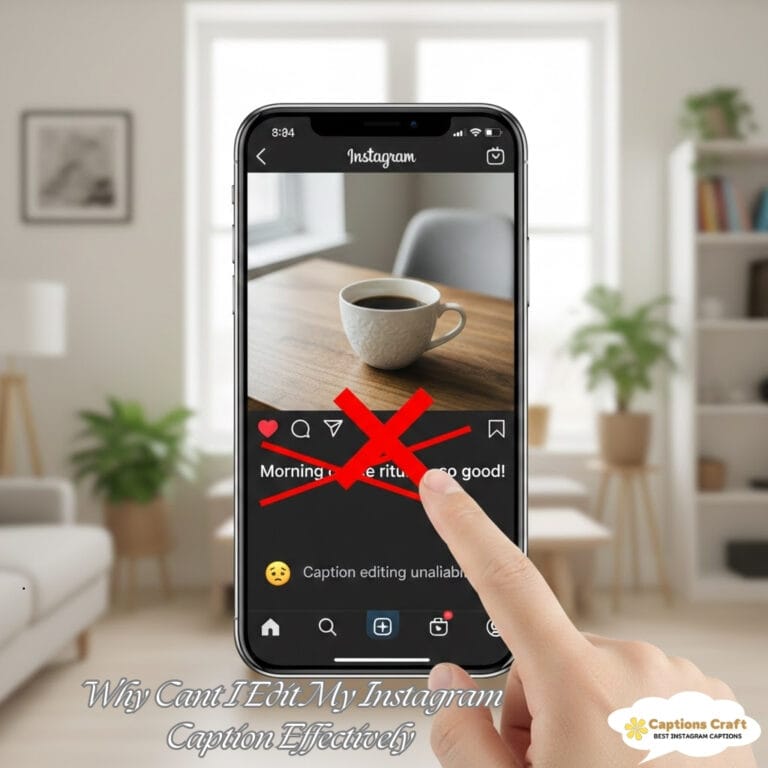
Editing an Instagram caption should be simple: you post, notice a typo or want to add something, tap “Edit,” and save. Easy, right?
But sometimes it isn’t. You try to edit, and nothing happens, or your changes don’t save, or Instagram removes part of your caption. Frustrating!
This problem affects regular posts, Reels, and even carousel posts.
Luckily, most of the time, it’s not your fault—it’s caused by app glitches, formatting issues, or account settings.
In this post, we’ll explore why Instagram makes editing difficult, common mistakes, and simple solutions to edit captions effectively.
1. Why Instagram Sometimes Blocks Caption Edits
There are several reasons your caption edits might fail:
a) App Glitches or Bugs
Instagram updates constantly. Small bugs may temporarily prevent caption edits from saving. This is especially common after a new app update or server maintenance.
b) Poor Internet Connection
If your internet is slow or unstable, Instagram may fail to save your edit even though it appears successful temporarily.
c) Too Many Hashtags or Mentions
Instagram allows up to 30 hashtags. Over this number, or too many user mentions, can prevent edits from saving.
d) Restricted or Flagged Words
Certain words or phrases Instagram flags as spam or sensitive may be removed automatically. If you try to add them while editing, the platform may block the change.
e) Posting via Third-Party Tools
Posts made using apps like Buffer, Later, or Hootsuite can sometimes prevent caption edits because of API restrictions or app conflicts.
f) Account or Content Restrictions
Business accounts, accounts under temporary restrictions, or posts marked as sensitive may limit caption editing temporarily.
2. Common Mistakes That Prevent Caption Edits
Even small mistakes can block your edits:
- Editing immediately after posting (Instagram sometimes blocks changes in the first 30–60 seconds)
- Copy-pasting text with strange formatting or invisible characters
- Using banned hashtags
- Trying to edit captions for Reels or carousel posts in bulk
- Not updating Instagram to the latest version

3. How to Edit Instagram Captions Effectively
Here are some practical fixes:
a) Use a Stable Internet Connection
Switch to WiFi or ensure strong mobile data. A weak connection can prevent edits from saving.
b) Strip Formatting From Text
Paste your caption into a plain-text editor like Notepad or Notes, then copy it back into Instagram. Hidden formatting can cause Instagram to reject the edit.
c) Shorten or Clean Up Hashtags
Keep hashtags under 30 and avoid blocked ones. Remove unnecessary mentions if possible.
d) Update the Instagram App
Outdated versions often contain bugs. Always use the latest version available in the App Store or Play Store.
e) Edit in the App, Not Third-Party Tools
Always make changes directly on Instagram, especially for Reels or carousel posts. Third-party apps may fail to sync changes.
f) Wait Before Editing
If your post is very new, wait a few minutes before trying to edit again.
g) Restart the App or Device
Sometimes, a simple restart clears temporary glitches preventing edits.
4. Where Editing Problems Are Most Common
Certain types of posts are more likely to have issues:
- Reels: Edits often fail because Reels use a separate upload system.
- Carousel Posts: Editing captions for multiple images at once sometimes causes glitches.
- Third-Party Scheduled Posts: Tools like Later or Buffer sometimes restrict edits.
- Business or Creator Accounts: Occasionally, Instagram imposes stricter rules for flagged or restricted content.
5. Preventing Caption Edit Problems in the Future
Keep your captions smooth and error-free by saving drafts, double-checking edits, and planning posts ahead to avoid future mix-ups or mistakes.
a) Keep Captions Simple
Avoid long chains of emojis, excessive line breaks, or special fonts.
b) Test Banned Hashtags
If a hashtag doesn’t show in search, it may cause problems. Skip it.
c) Save a Backup
Keep your caption in Notes or a draft. If Instagram fails, you can try again without rewriting everything.
d) Post When Instagram Isn’t Busy
Heavy traffic hours can increase glitches. Posting during off-peak times helps.
e) Avoid Immediate Multiple Edits
Give the system time to register changes before editing again.
FAQs
Why Can’t I Edit My Instagram Caption?
If you can’t edit your caption, it’s often a small app glitch or a connection problem. Sometimes the edit option doesn’t appear, or the changes don’t save after you update the text.
Could A Temporary App Bug Stop Caption Editing?
Yes, glitches happen from time to time on Instagram. When the app acts up, certain actions like editing captions may not work until the issue clears or the app restarts.
Does A Weak Internet Connection Affect Caption Editing?
It can. If your internet signal is unstable, Instagram may fail to save the edited caption. The change may look successful at first but disappear after refreshing the post.
Can An Outdated Instagram App Cause This Problem?
Yes. Older versions of the app sometimes struggle with editing features. Updating the app from your device’s app store often fixes these kinds of issues.
Is There A Time Limit For Editing Instagram Captions?
No strict time limit exists for editing captions on your own posts. You can update them anytime, even months later, as long as the post belongs to your account.
Could Instagram Be Experiencing Server Issues?
Yes, sometimes Instagram servers slow down or experience temporary problems. When that happens, edits may not save or the edit option might fail to load.
Can I Edit Captions On Someone Else’s Post?
No. Only the person who uploaded the post can edit its caption. If the post belongs to another account, the edit option won’t appear.
Does Logging Out And Back In Help Fix The Issue?
Sometimes it does. Logging out and signing back into Instagram refreshes your account session and can clear minor glitches affecting editing.
Can Too Many Hashtags Prevent Caption Editing?
Usually not, but if a caption exceeds Instagram’s character limit or includes restricted terms, the platform may block the update from saving properly.
What Is The Best Way To Edit An Instagram Caption?
Open the post, tap the three-dot menu above it, choose the edit option, update your text, then save the changes. Refresh your profile to confirm the caption updated.
When Should I Contact Instagram Support?
If editing captions fails repeatedly after updating the app and checking your connection, you can report the problem through the help section inside Instagram.
Conclusion
Editing Instagram captions shouldn’t be a headache, but glitches, formatting issues, and restrictions can make it tricky.
Most problems are easy to fix: use a stable connection, remove formatting, keep hashtags clean, and update the app.
By understanding the common causes, avoiding mistakes, and using the right approach, you can edit captions effectively every time—saving time and frustration while keeping your posts polished.